The Making of'It's Always Sunny Around Here'Chapter 7: Ebook Conversion

To read this making-of guide as a downloadable ebook, click here for the EPUB and click here for the Kindle version (AZW). To look at and/or buy the book being discussed, head over to Amazon.
(Click on any image below to see the full-sized version.)
Let me warn you upfront that this will be the most technical chapter of this book, because of the unique challenge being discussed here; that although converting your electronic text into a format that can be opened and nicely displayed on Kindles and other ebook readers should be the simplest step of this entire process, and often is, any problems you might have with this conversion then becomes a coding problem instead of an editing or design problem, and trying to solve a coding problem when you’re not a coder can often be a maddening process that will drive you crazy. So, let’s start with a primer of what exactly ebooks are, so that you’ll hopefully have some context for the common problems associated with them.
When all is said and done, the standard format for ebooks, known as EPUB, is nothing more than the same files that make up a website—that is, HTML pages to display the content, married to a CSS document that describes how the browser should display and format this content. An ebook reader, then, is the exact same thing as a web browser, only with a specialized interface that lacks most of the buttons you might find in Chrome or Firefox, designed specifically to take that “website” full of HTML and CSS files and display it on the screen like you’re reading a book. An EPUB file works on every single ebook device and ebook app in the world besides Amazon Kindles; Amazon instead has their own proprietary format (AZW), which is pretty much an exact duplicate of an EPUB but with the ability to add “anti-copying” software (known as “digital rights management,” or DRM), so that people can’t pirate Kindle books.
So in theory, it should be the simplest thing ever to use one of a plethora of software apps that now exist for making ebooks, most of which promise that you can just upload a Word file, press a single button, and have a perfectly done and visually beautiful EPUB file ten seconds later, which Amazon will automatically convert into an AZW file for you when you upload it to their site. And indeed, that’s exactly how I started with Sunny, by downloading the free Kindle Create app that promises to do exactly what I just described, then uploading the clean version 5 of the Word file discussed in the previous chapter. The thing I like most about Kindle Create is that it adds special CSS code that helps make your title page and copyright page appear more centered on an ebook reader’s screen; this is one of the main challenges of ebooks, that each individual reader can manually change the text in your book to whatever size they want and whatever typeface they want, so it can be a huge challenge to code a title page in a way so that it appears perfectly centered on the Kindle screen whether the reader has chosen little tiny text or big giant text.
Now, before you do this, you can save yourself a lot of hassle by formatting your Word file beforehand in a way that the ebook conversion software is expecting, which makes the conversion go much more smoothly. In a nutshell, remember that you have very little control over the book’s visual details, so set your Word file up in the same way: designate the entire text to be nice simple Times New Roman (since the reader will be setting this afterwards to whatever they want), use the ruler to indent each paragraph instead of adding manual tabs (since the ebook reader will automatically add its own indents in this way as well), and make sure all the various parts of the text are sized the same way (in other words, make all body text 12 points, make all subheadings 18 points, make all headlines 24 points, etc., which helps the ebook conversion software understand which parts of the book are which).
Scrub your document of any fancy proprietary formatting exclusive to Word alone, such as special tables, automatic page numbers, or weird margins. If you have images, get rid of any text wrap you might have applied to them, and let them just sit as their own line between the two paragraphs of text where it appears in the paperback version. And crucially, for now get rid of all the front matter and back matter, because you’ll be adding these pages manually after Kindle Create converts your body text into the meat of the finished ebook.
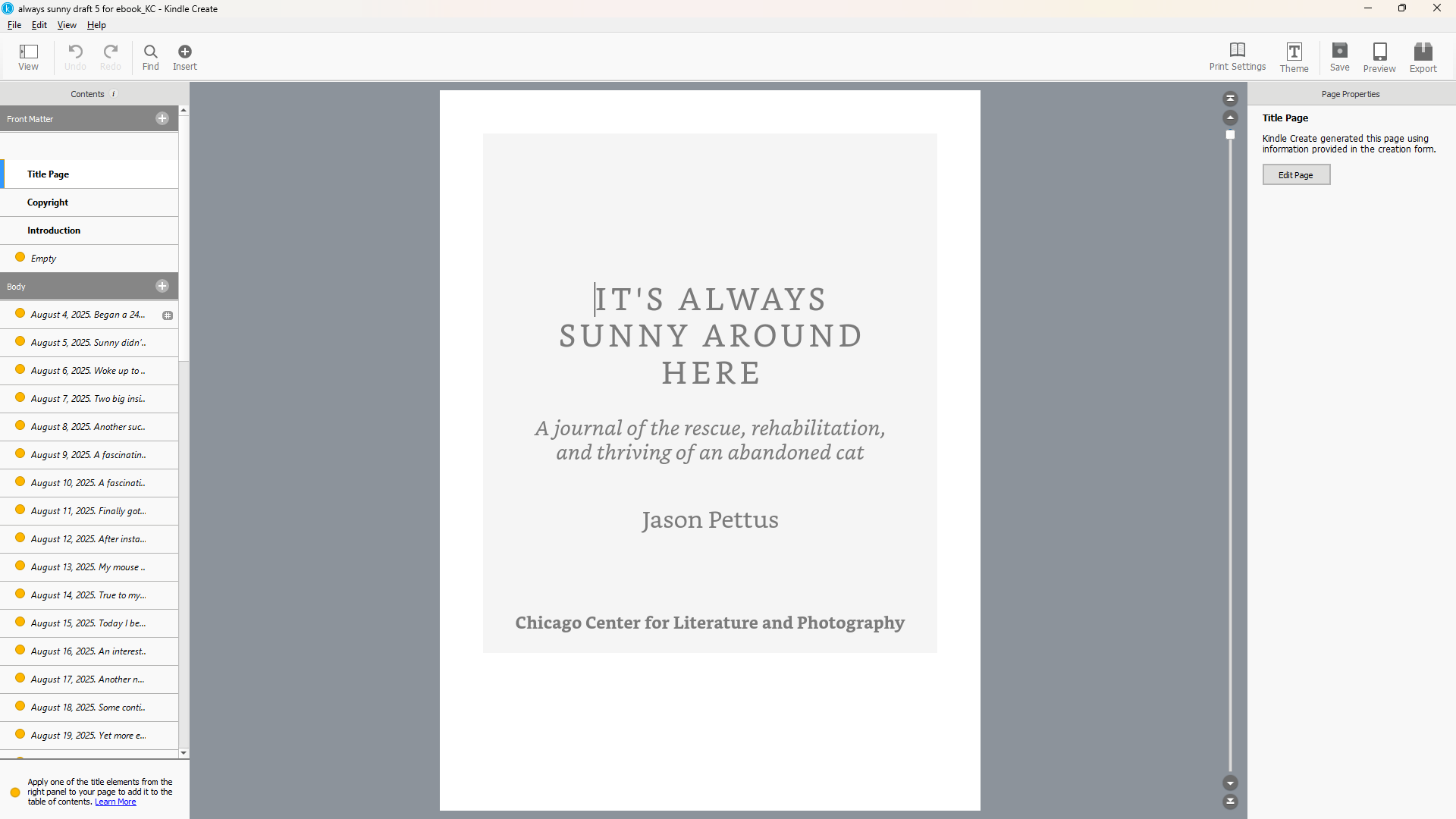
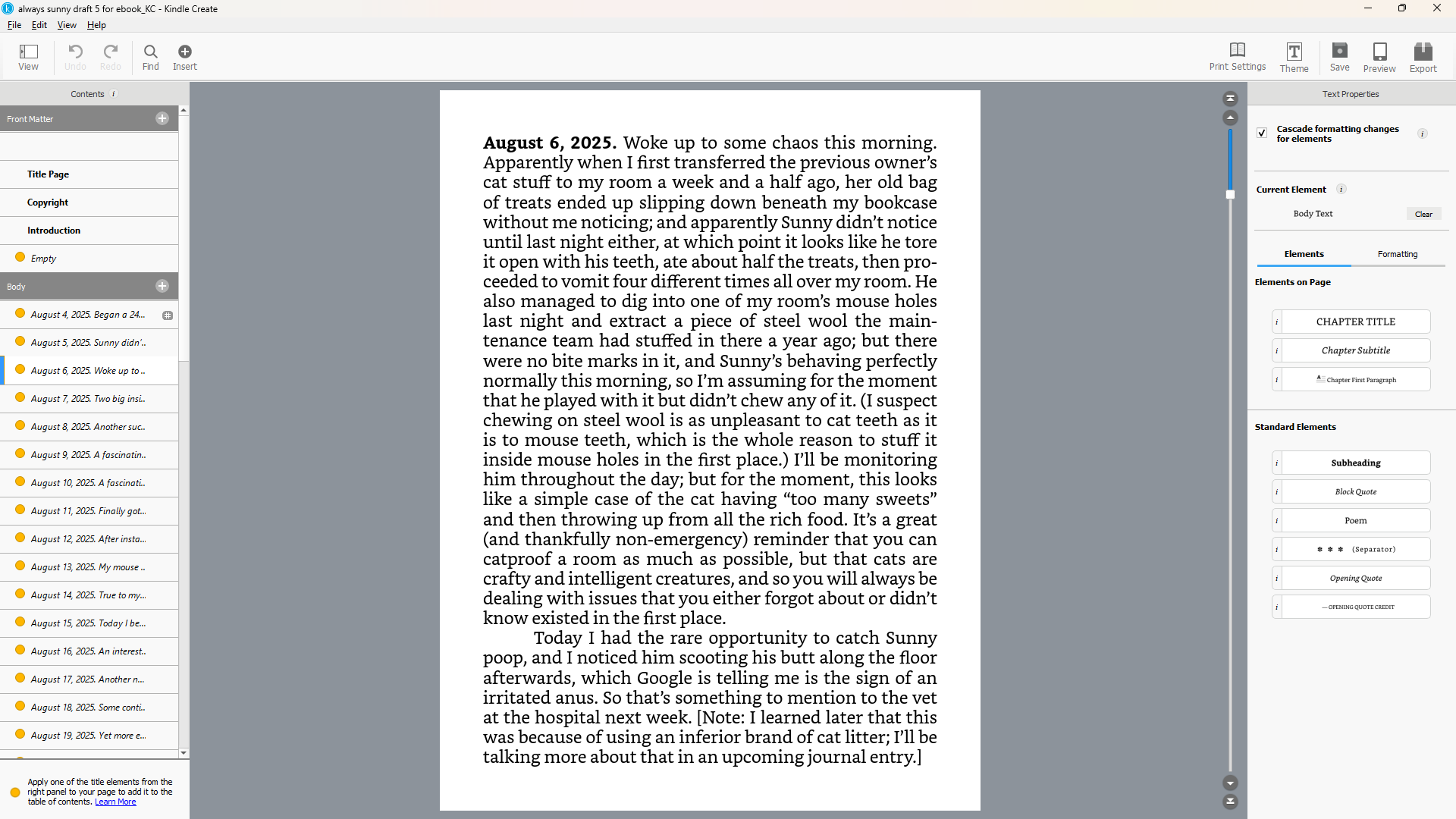
When I did this, the text generally turned out great, because Kindle Create is very good at taking Word formatting like italics and boldfaced text and automatically converting that into the <i> and <b> tags needed within HTML to denote the same thing. It’s also very good at recognizing things like manual page breaks in Word and converting those into the proper HTML (basically, by creating a separate HTML file for each and every chapter and other section of the book, which the ebook reader software then translates into a “book” that displays each of these files one after the other). In the case of Sunny, that got me 90 percent of the way towards a finished ebook; and given that Kindle Create is a free download, I can’t really complain about 90 percent.
Still, though, the main thing Kindle Create didn’t do right in my case was set up the clickable table of contents correctly; this is the list that appears whenever you click the “contents” button on a Kindle or other ebook reader, which lets you press on an item with your finger and get instantly transported to that section of the book. So at that point, after outputting the finished EPUB file, I then took that document and moved over to one of my all-time favorite pieces of software, the free Calibre ebook manager that I’ve been using in my personal life for almost twenty years now.
Calibre lets you do all kinds of things with your ebooks, including providing a much easier interface for adding and deleting titles than the default one Kindle includes; but for the purposes of this chapter, the main benefit here is that it lets you click a single button labeled “edit ebook,” and it will open a special coding interface that will let you directly change and then save the HTML and CSS inside the book itself. (An EPUB file is the same thing as a ZIP archive, which is an ancient way to collect up a bunch of different documents and bundle them all together into a single optimized file; converting a ZIP archive into an EPUB is as simple as manually changing the “.zip” at the end of the file’s name to instead “.epub,” while actually opening an EPUB and seeing all the collected files inside is as simple as changing the name of the extension back to “.zip,” then double-clicking on it afterwards.)
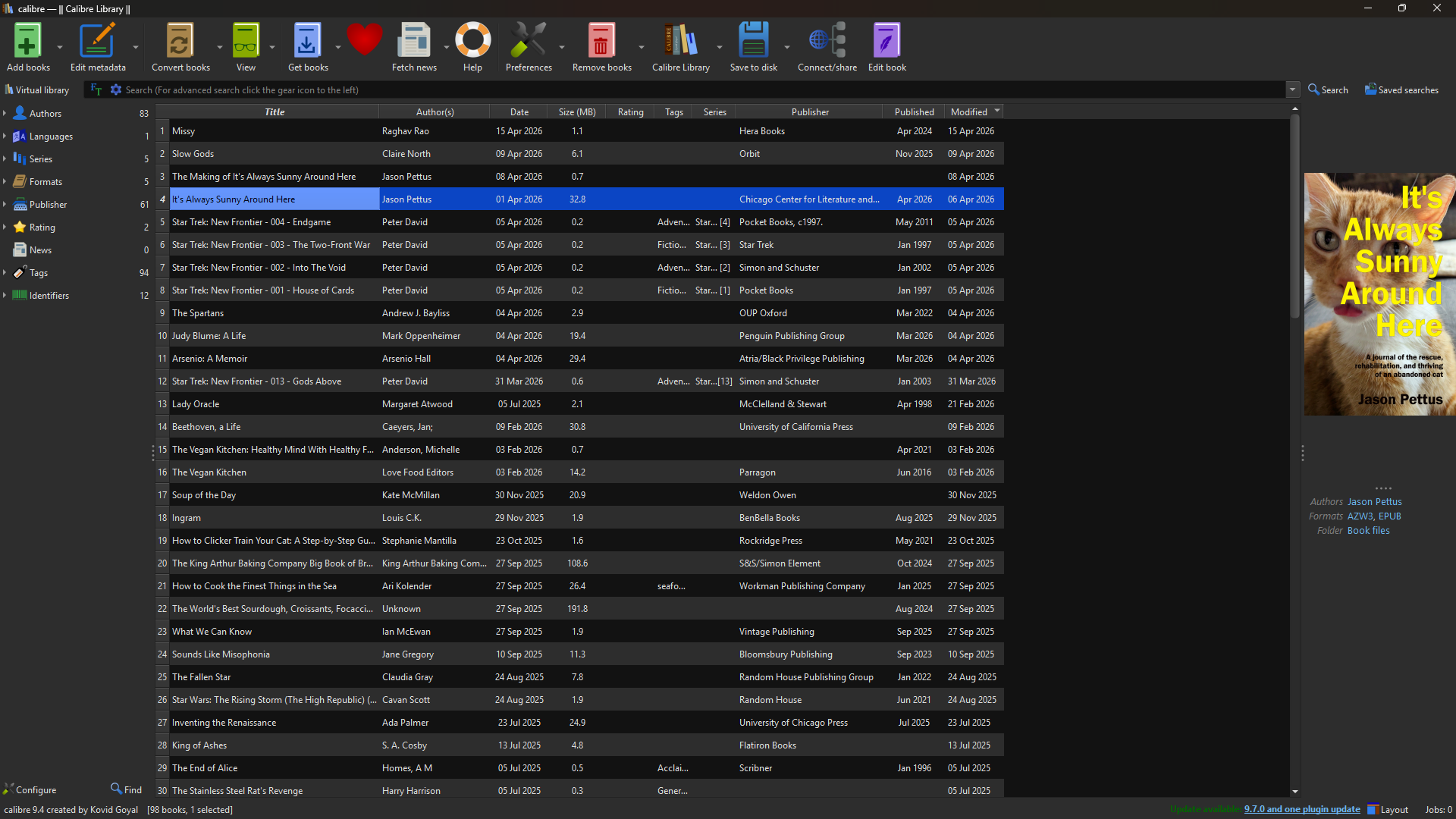
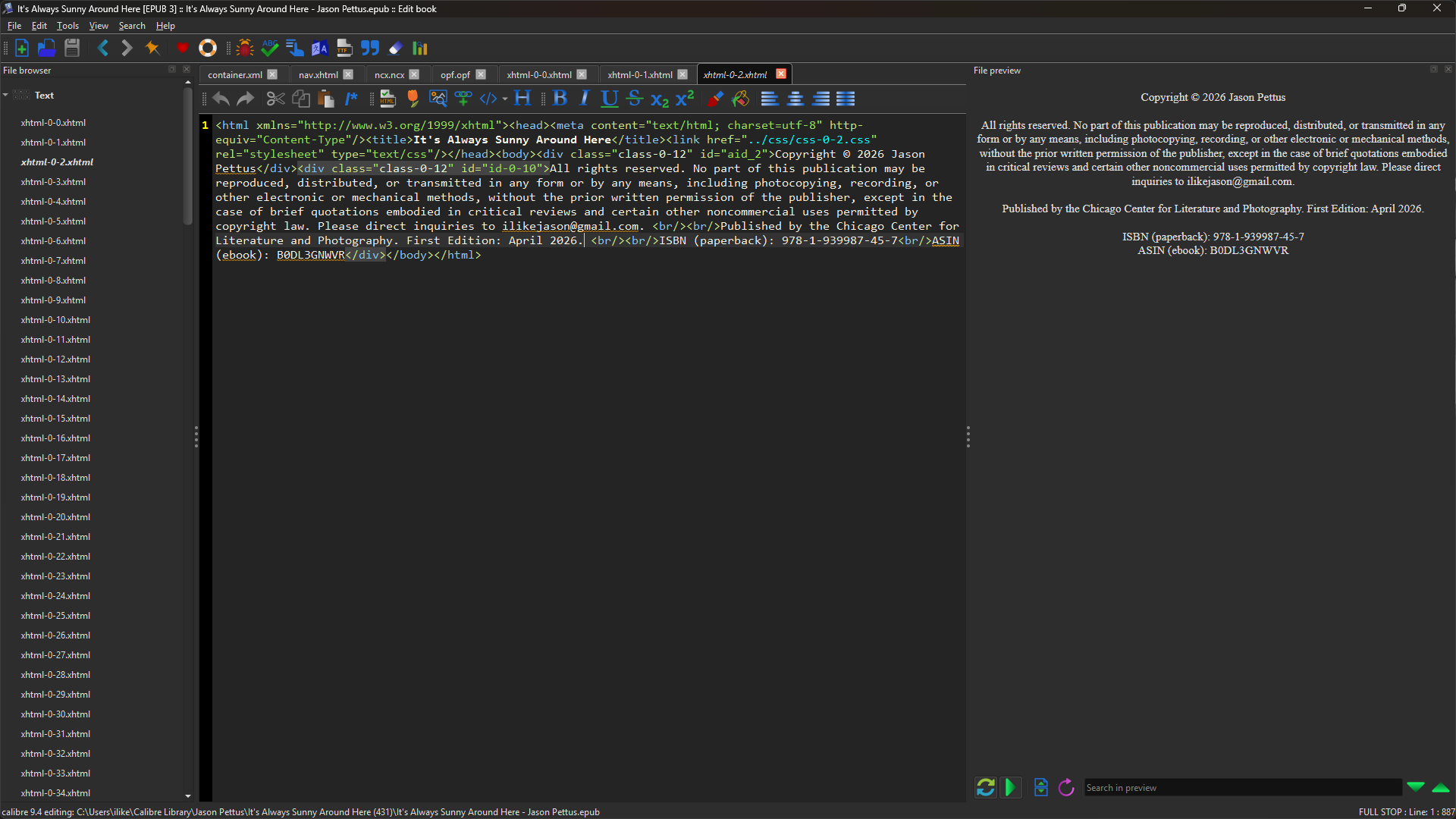
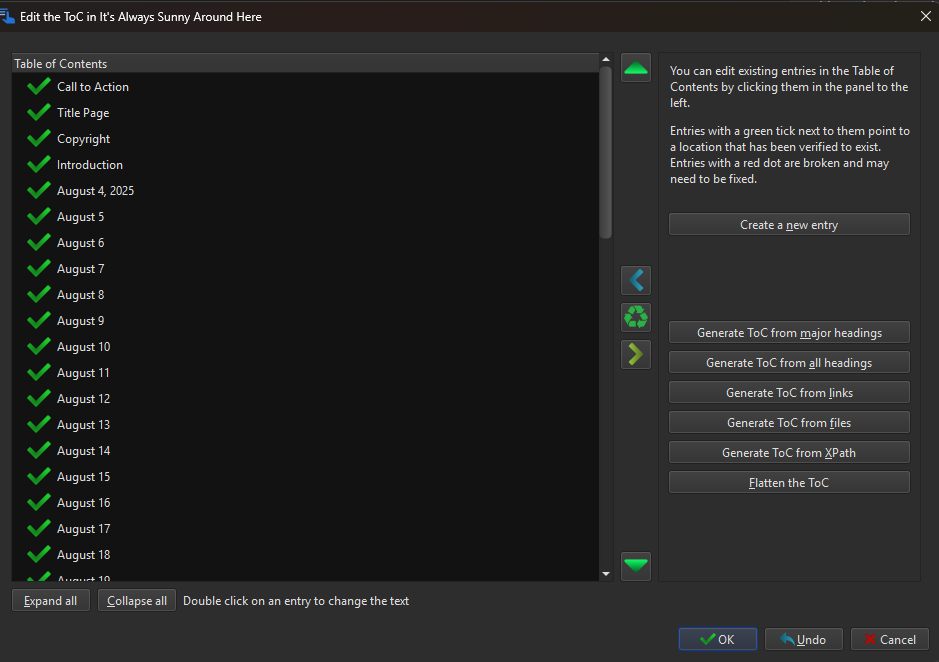
I will admit, you will need to know a certain amount about HTML in order to go into your EPUB and do granular changes like this; but the good news is that even eight-year-old children can learn HTML coding in a single afternoon “Anyone Can Code!” workshop, which means you can easily learn everything you need to know in a single day as well. In my case, in the Calibre interface I chose to edit the table of contents; and every time I manually added a name to one of my journal entries (as well as naming such front and back matter pages as “Introduction,” “Author Bio,” etc.), Calibre very nicely changed the relevant HTML code in the book’s “nav.xhtml” file (the page Kindles use to know what the table of contents is), and the book’s “ncx.ncx” file (which tells the Kindle what order to display the various chapters as the reader thumbs their way through it).
To be clear, you don’t need Calibre to do this code editing, but can use any app that exists that’s designed to edit code, whether that’s Vim, Emacs, Sublime, VS Code, or on and on; admittedly, though, you largely need to be a coder yourself to even know about these kinds of apps at all, which is why it’s profoundly easier for a non-coder to just use Calibre’s built-in editing function. If you really want to take charge of this situation and learn how to entirely build EPUBs from scratch using no converter at all, the single best resource I’ve so far found for this is Elizabeth Castro’s classic book EPUB Straight to the Point, which is over fifteen years old at this point but still works great, in that the EPUB standard has barely changed in all that time. Given how much all book reading in our modern society has switched over from physical copies to Kindles, learning EPUB coding from scratch is more worth your time than just about any other software discussed in this process, with the exception of page layout software like Affinity or InDesign.
Once you’re finished with the EPUB, you’re officially done with all the various book parts you’ll be eventually uploading to Amazon; there’s just one major preparational step left before publishing, which is collecting up the book’s “metadata,” like its synopsis, its ISBN, and the categories you want it filed under at Amazon. We look at all of that in the next chapter.